You’re in a shell, a command just threw an error, and you do the thing everyone does: copy the line, alt-tab to a browser, paste it into a search box or a chatbot, read three answers that don’t quite match your case, alt-tab back, and try to remember what you were doing. The fix was never the slow part. The context-switch was.
CentralHost’s web terminal now has a Copilot — an AI helper docked in a rail right next to the live shell. It reads what’s already on your screen, explains it in plain language, and hands you the next command. No tab. No copy-paste. No re-explaining the situation to a chatbot that can’t see it.
It lives next to the shell, not in another tab
The Copilot is a panel beside the terminal, not a separate page. The shell stays live and connected on the left; the conversation sits on the right. You ask in plain language — “what does this warning mean?”, “how do I restart nginx?”, “how do I find the largest files?” — and the answer arrives without you ever leaving the session.
There’s a one-click Explain the last output button for the most common move of all: something just happened on screen and you want to know what it means before you touch anything.
It sees what you see
This is the part a browser tab can’t do. When you ask a question, the Copilot carries a snapshot of your recent terminal output along with it. So when nginx is throwing 502s and the PHP-FPM log is full of server reached pm.max_children, you don’t have to describe any of it — the Copilot already read the screen.
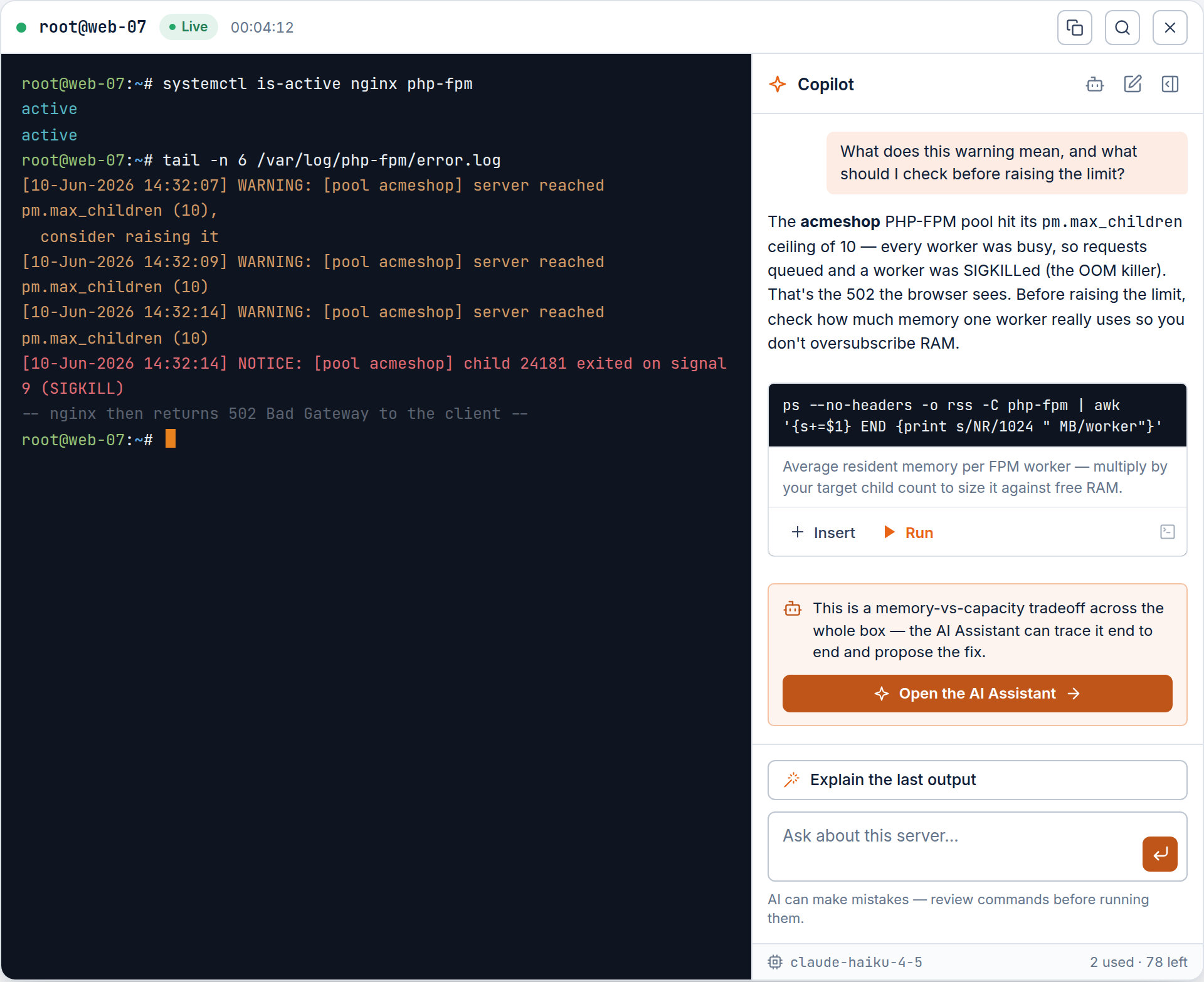
In the shot above it reads the warning, connects it to the SIGKILLed worker and the OOM killer, and explains why the browser is seeing a 502 — then tells you the one thing to check before blindly raising the limit: how much memory a worker actually uses. That’s the difference between an answer and advice.
Commands you insert or run — with a guard on the dangerous ones
When the Copilot suggests a command, it doesn’t just print it for you to retype. Each suggestion is a card with two buttons:
- Insert types the command into your prompt so you can edit it and press Enter yourself.
- Run sends it straight to the shell.
Either way, you are the one executing — the AI never runs anything on its own. And anything destructive (rm, dd, mkfs, dropping a database, rewriting firewall rules) is flagged Potentially destructive and won’t run on the first click: it arms a confirm step you have to deliberately approve. The fast path stays fast; the irreversible path makes you stop and look.
It knows when to hand off
The Copilot is the quick helper for the shell in front of you — lightweight, single-shot, no heavy machinery. When a question is bigger than that — a root-cause trace across logs, metrics, and services, or anything fleet-wide — it says so and offers to hand the question to the AI Assistant, the deep, tool-backed agent that reasons in a loop and can apply a fix behind an approval gate. One click carries your question over, pre-filled. You’re never stuck asking a lightweight helper to do heavyweight work.
No surprises on cost
Every answer shows the model it ran on and a running tally in the status line — credits used this session, and what’s left on your balance. The Copilot defaults to a fast, inexpensive model, so quick questions stay cheap. You always know what a question cost before you ask the next one.
The point
The terminal is the manual fallback — the place you go when you want your hands on the box. The Copilot makes that place smarter without taking the controls away from you: it reads the screen so you don’t have to re-type it, explains the error so you don’t have to go fishing for it, and offers the next command so you don’t have to remember the exact flags — while every irreversible action still waits for your hand on the switch.
Next time a command throws something you don’t recognize, you won’t reach for another tab. The answer is already looking at the same screen you are.