
A client messages you: their site is down, throwing a 502. You manage forty servers. Before you can fix anything, you have to answer a dumber question first — which box is this domain even on?
That second question is where the minutes go. Not the fix. The triage. SSH into the wrong server, grep the wrong logs, check which-account-was-it-again. On a single server a 502 is a five-minute job; across a fleet, the first four are spent just finding the patient.
This post walks one outage end to end — a real 502 — and shows how CentralHost collapses that triage.
Step 1: find the server
Don’t go looking. Type the domain into the fleet search.
It resolves instantly across every managed host: which server is serving shop.example.com, which hosting account owns it, which panel, what stack. No “let me check cPanel on web-03, no wait, web-07.” One box, one search, the answer.

This sounds small. It is not. The whole premise of a fleet-first tool is that your unit of work is the fleet, not the server — you should never have to remember where things live. The search is the part of CentralHost people quietly fall in love with, precisely because it deletes a question they’d stopped noticing they were asking.
So: shop.example.com lives on web-07, account acmeshop, cPanel, PHP 8.2 via PHP-FPM behind nginx. Now we have a patient.
Step 2: describe the symptom to the AI Assistant
Open the server, open the AI Assistant, and say it the way you’d say it to a colleague:
shop.example.comis returning 502 Bad Gateway. Why?
No log paths, no service names, no guessing which subsystem. You hand it the symptom; it does the legwork.
Step 3: watch it reason, not guess
A 502 has a dozen plausible causes and the unhelpful ones look the same from the browser. The Assistant doesn’t pick one and hope — it runs the loop a good operator would, except in parallel and without forgetting a step:
- Web server first. nginx is up and answering, so the 502 is coming from nginx, not instead of it — it’s the upstream that’s failing. That single fact eliminates half the candidates.
- Follow the upstream. The PHP-FPM pool for
acmeshopis the upstream. It checks the service: the master is running, but the pool log is full ofserver reached pmax_children setting, consider raising itand workers dying. - Why are workers dying? It pulls resource pressure and finds the real story in the kernel ring buffer: the OOM killer fired twenty minutes ago and reaped PHP workers. The box is out of memory.
- What changed? It correlates the timeline — a backup job and a traffic spike landed on top of an already-tight memory ceiling at the same minute the 502s started.
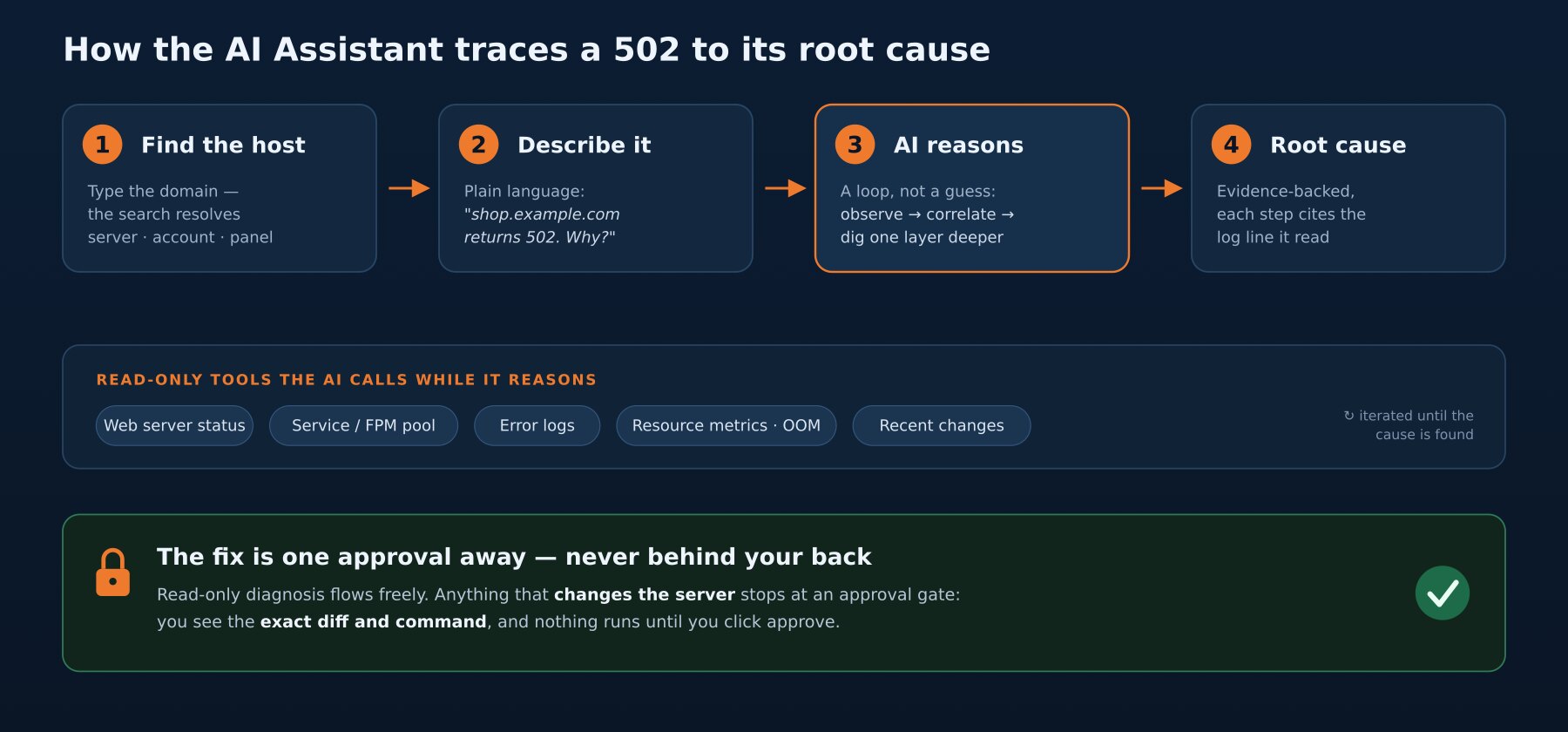
It surfaces all of that as a short chain of evidence, each step citing the log line or metric it read — not a verdict you have to take on faith. You can see why it concluded what it concluded, which is the difference between a tool you trust at 2am and one you double-check by hand (at which point, why have it).
The root cause isn’t “PHP-FPM is down.” It’s “the pool is being OOM-killed under load because pm.max_children is set for a memory budget this server no longer has.” Two layers deeper than the error the browser showed you.
Step 4: fix it — with your hand on the switch
The Assistant proposes the fix: lower pm.max_children to fit real memory, or move the pool to ondemand, and restart it. In CentralHost the AI can apply changes — edit the file, run the restart — but mutating actions are not autonomous. They stop at an approval gate: it shows you the exact diff and the exact command, and nothing touches the server until you click approve. Read-only diagnosis flows freely; anything that changes state waits for a human.
So you read the one-line diff, approve it, watch the pool come back, and the 502 clears. Total time from “site is down” to “fixed”: the length of one conversation — most of which was the Assistant reading logs, not you.
The point isn’t the 502
It’s that on a fleet, expertise is cheap and triage is expensive. You already knew how to fix an OOM-killed FPM pool. What cost you was finding the right server, then reconstructing the chain from browser error to upstream to memory to the job that tipped it over — five tools deep, under a client’s “is it back yet?”
CentralHost compresses both ends: the search finds the host, and the AI Assistant walks the evidence so you arrive at the cause instead of hunting for it — with the fix one approval away, never behind your back.
Next time a domain throws a 5xx, the first move isn’t SSH. It’s a search box and a plain-English question.