Close the SSH port with a bastion
Take port 22 off the public internet without locking yourself out — keep the everyday web terminal, arm the bastion break-glass, then restrict SSH to the bastion.
Closing SSH to the world removes a whole class of attack — no port for scanners to find, no daemon for the next OpenSSH 0-day. The catch is doing it without losing your way back in. This guide walks the safe order: confirm your everyday access, arm an emergency access, and only then close port 22 — all from the dashboard.
Before you start
- The server’s agent is enrolled and online (see Connect your first server).
- Your deployment runs a bastion. If it doesn’t, the Bastion mode card described below stays hidden and there’s nothing to restrict to — ask your administrator.
Step 1 — Confirm everyday access
Your day-to-day shell doesn’t use port 22 at all. The agent holds a single outbound connection to the control plane, and the browser terminal rides that channel.
- Open the server and go to the Terminal section.
- Confirm you get a root prompt.
Because no inbound port is involved, this keeps working after port 22 is closed. It’s your primary way in — the bastion is only the fallback.
Step 2 — Register a bastion key
The bastion is a tunnel-only jump host that reaches your servers with native SSH even if the control plane is down. It never stores credentials to your hosts: you log in with your own key, end-to-end. Register the public half here.
- Open Bastion keys from the sidebar.
- Give the key a Label (e.g.
laptop,on-call phone). - Choose how to add it:
- Paste key — paste an existing
ssh-ed25519 …public key. - Upload .pub — pick a
.pubfile. - Create new key — the browser generates an Ed25519 keypair; the private key is offered as a one-time download and never reaches our servers.
- Paste key — paste an existing
- Click Add key.
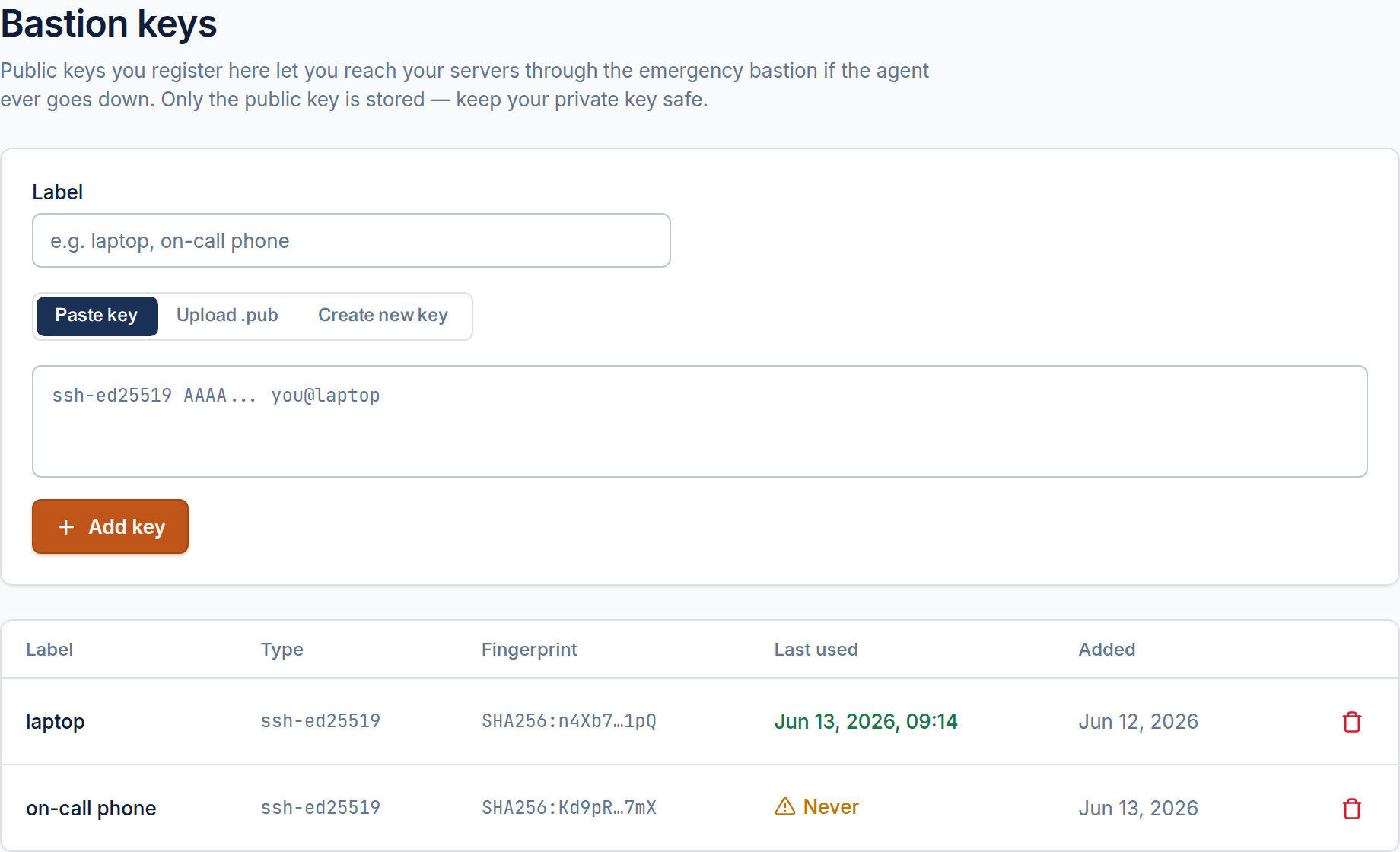
The new key appears in the list with its fingerprint and a Last used value of Never. A key that has never authenticated through the bastion is untested — the next step proves it.
Step 3 — Verify emergency access (fire-drill)
Run one real connection through the bastion so you know the door opens:
ssh -J jump@b1.centralhost.sh root@your-host
If you land on the host, your break-glass works. Back in Bastion keys, the key’s Last used flips from Never to a timestamp. This is required: CentralHost blocks closing port 22 until at least one key has been used through the bastion.
Step 4 — Restrict SSH to the bastion
With both ways in confirmed, close the port from the firewall.
- Open the server’s Firewall section.
- Find the Bastion mode card. The chip reads Open to the world.
- Click Restrict SSH to bastion and confirm.
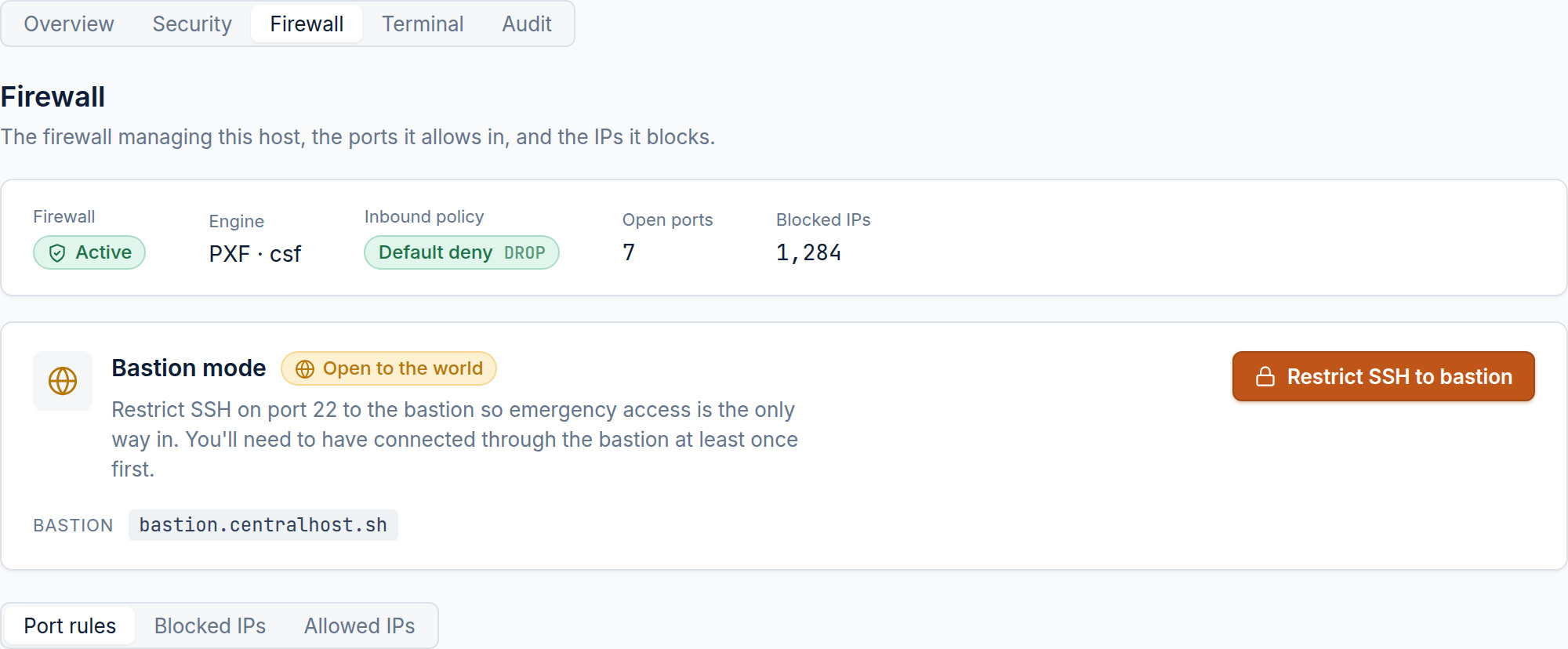
CentralHost restricts the host’s SSH port to the bastion set and closes it to everyone else. Two guards protect you here:
- Not verified — if no key has ever been used through the bastion, the action is refused with a link back to Bastion keys. Complete Step 3 first.
- Wrong port — if the host’s
sshdwas moved off 22, the apply detects the live port, corrects the stored value, and asks you to review before closing the right one.
When it succeeds, the chip turns to Bastion only and port 22 is closed to the world.
Reopen when you need to
Need direct access again? The same card shows Reopen SSH to the world — a one-click break-glass that lifts the restriction immediately. Use it sparingly; the point of all this is that it stays closed.
Troubleshooting
- No Bastion mode card — the deployment has no bastion configured, or the host isn’t
MANAGEDby the firewall. Check the firewall status header. - “Verify emergency access first” — you haven’t completed Step 3. Register a key and make one
ssh -Jconnection. - “The live SSH port doesn’t match” —
sshdruns on a non-standard port. Refresh the card; the stored port is corrected automatically, then retry. - Bastion connection refused — confirm the key’s fingerprint matches what you registered and that you’re targeting a host in your scope.